
Mouse DPI vs Polling Rate: The Core Difference
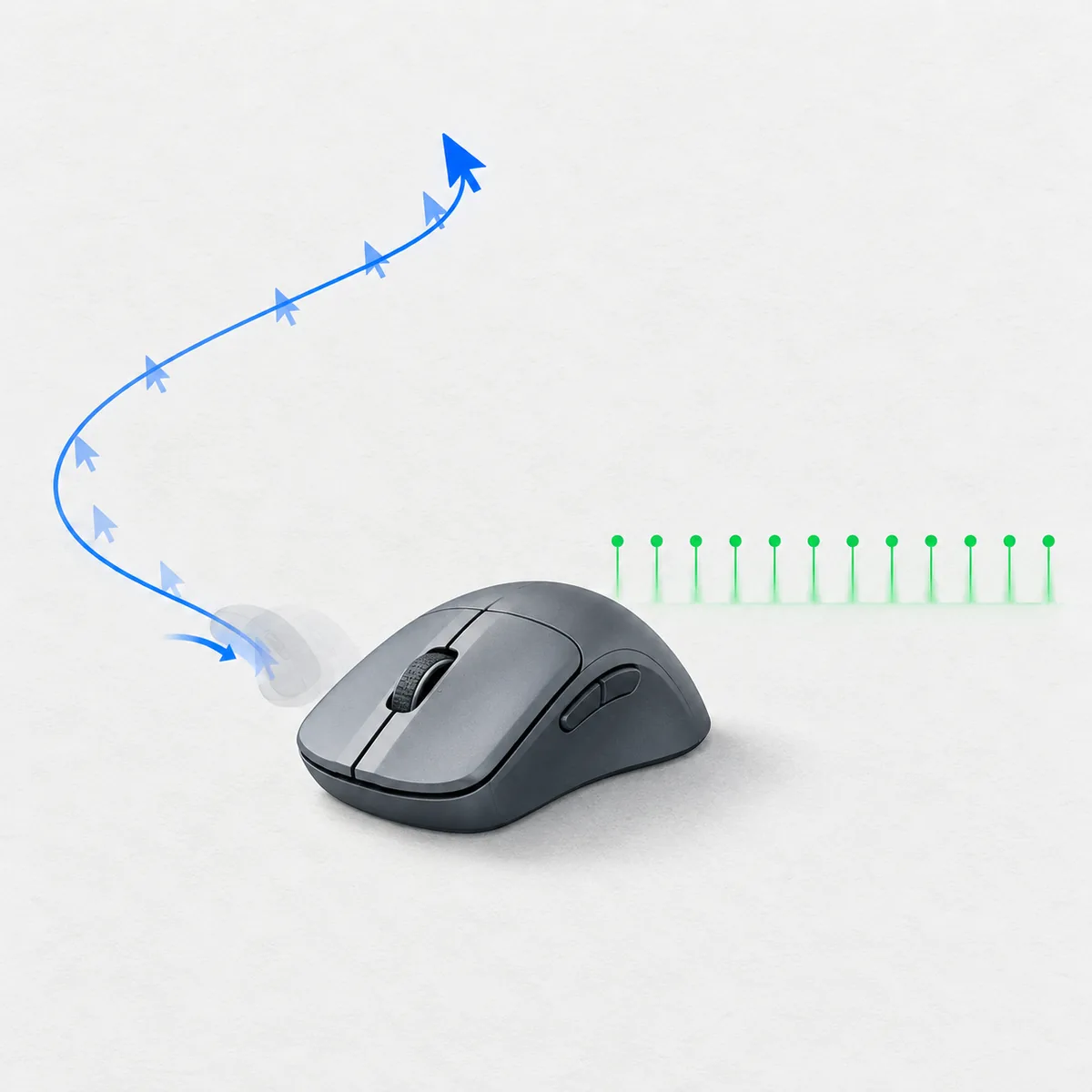
Mouse DPI vs polling rate compares movement scale with reporting frequency. DPI counts how many sensor counts register per inch of travel. Polling rate counts how many times per second the mouse reports to the computer, measured in hertz (Hz). DPI affects how far the pointer or game view moves; polling rate affects the time between reports.
These settings are independent: a mouse can run at 800 DPI and 1,000 Hz, or 1,600 DPI and 4,000 Hz. If travel feels wrong, change DPI or sensitivity. To compare update timing, change polling rate while keeping other conditions steady.
What DPI Changes on a Mouse
DPI means dots per inch; CPI (counts per inch) is a more literal sensor term. In mouse settings, it describes how many position counts the sensor produces per inch of movement. Higher DPI supplies more counts for the same swipe, but software decides how those counts map to screen movement.
Moving from 800 to 1,600 DPI roughly doubles input counts for the same swipe before software scaling. Pointer speed, acceleration, game sensitivity, and raw-input handling affect what you see. DPI is the sensor-side setting; sensitivity scales input inside a game.
- Adjust DPI or game sensitivity when the pointer or camera travels too far or too little.
- Choose a supported DPI step; an extreme advertised maximum is not required.
- Keep settings steady while you build a repeatable movement feel.
What Mouse Polling Rate Changes
Polling rate is how often a mouse reports movement and button state. Nominal intervals are 8 ms at 125 Hz, 2 ms at 500 Hz, 1 ms at 1,000 Hz, and 0.25 ms at 4,000 Hz (1,000 divided by Hz). This is the report interval, not total input latency.
More frequent reports do not skip operating-system, connection, game, frame, or display delays. High rates can add system work or use more battery. Choose a rate the mouse and computer handle consistently.
How DPI and Game Sensitivity Work Together
DPI and in-game sensitivity jointly set movement scale. Some games use eDPI = DPI multiplied by sensitivity. Within one game's scale, 800 DPI at sensitivity 1.0 and 1,600 DPI at 0.5 both equal 800 eDPI.
eDPI is not universal across games, which can use different scales, acceleration, and input handling. Compare settings in the same title with the same surface and movement.
Which Setting Should You Change First?
If the pointer or camera travels too far or too little, adjust DPI or game sensitivity. If travel feels right and you are comparing update timing, adjust polling rate. Neither setting substitutes for the other.
Favor comfort and repeatability over copied presets. Choose a manageable movement distance, keep it fixed, then test polling-rate changes separately, especially on a busy PC or wireless mouse.
- Too much travel: lower DPI or sensitivity.
- Too little travel: raise DPI or sensitivity.
- Movement feels right: compare polling rates separately.
- Stutter or battery drain appears: return to a lower stable rate.
Choosing a Polling Rate Without Chasing Numbers
Many mice offer 1,000 Hz plus lower or higher choices, but options depend on the model, connection, firmware, and software. Higher rates may help a particular high-refresh setup, yet can add system work or reduce wireless battery life.
Compare rates in the same game scene with the same mouse, receiver position, frame cap, and movement. Keep a higher rate only if it stays stable and offers a useful difference; a repeatable lower setting is valid.
What a Browser Polling Rate Test Can Tell You
A browser test estimates pointer-event timing delivered to the page. It can compare settings under matched conditions, but does not inspect the mouse's USB report descriptor, radio packets, firmware, or driver queue. Browser coalescing, operating-system scheduling, background work, movement, and tab focus affect the result.
Treat it as a diagnostic clue, not proof of hardware performance. Repeat the same motion, close unnecessary workloads, and compare ranges. If readings remain low, check the mouse utility, receiver or port, firmware, and system load; the site's polling rate test explains its browser-side limits.
DPI vs Polling Rate at a Glance
The difference is easiest to remember by separating distance from time: DPI relates to counts over physical movement, while polling rate relates to reports over time.
| Setting | DPI | Polling rate |
|---|---|---|
| Measures | Sensor counts per inch of physical movement | Reports sent to the computer per second |
| Common unit | DPI or the more literal CPI | Hertz (Hz) |
| Main effect | Movement scale before other software scaling | Nominal interval between mouse updates |
| Change it when | Pointer or camera travel feels too fast or slow | You are comparing update timing and system stability |
| Does not directly control | How often the mouse reports | Cursor distance for each inch moved |
How to Compare DPI and Polling Rate Settings
Use this sequence to make a fair comparison. It avoids changing movement scale and report timing at the same time, which would make the result difficult to interpret.
Keep a short note for each run: DPI, game sensitivity, polling rate, connection type, and whether frame pacing or battery behavior changed.
-
Pick a comfortable DPI
Choose a supported value that lets you move across the desktop and game view without straining or constantly lifting the mouse. Values such as 800 or 1,600 can be starting points, not universal recommendations.
-
Tune sensitivity in one game
Keep DPI fixed and adjust that game's sensitivity until a normal swipe or turn feels controlled. Do not compare eDPI values across different games unless their scales are known to match.
-
Set a stable polling baseline
Choose a rate supported by your mouse and connection. Many users begin at 1,000 Hz because it is a common option, but a lower setting is valid if it behaves more consistently.
-
Change only the polling rate
Repeat the same movement or game scenario at another available rate. Keep the game, scene, frame cap, mouse surface, and receiver or cable conditions as consistent as possible.
-
Keep the setting that works
Compare control, frame pacing, responsiveness, and wireless battery use over a realistic session. If a higher rate brings no clear benefit or causes instability, return to the lower stable option.
Frequently Asked Questions
Is DPI the same as polling rate?
No. DPI describes sensor counts per inch of physical travel, while polling rate describes reports per second. One concerns movement scale; the other concerns update timing.
Does a higher DPI reduce input lag?
DPI does not set the mouse's report interval. A higher DPI supplies more counts for the same movement and can change how far the pointer or camera travels after software scaling. It is not a substitute for polling rate.
Does a higher polling rate make the mouse more sensitive?
No. Polling rate changes how often updates are reported, not the movement scale for each inch. Change DPI or game sensitivity to adjust travel distance.
What polling rate should I use for gaming?
Start with a rate your mouse supports and your system handles consistently. Many mice offer 1,000 Hz as a common baseline, but the best choice depends on the game, computer, connection, and battery needs.
Are 4,000 Hz or 8,000 Hz always better?
No. These rates have shorter nominal report intervals, but practical benefit depends on the full input and display pipeline. Higher rates may use more system resources or battery, so compare them in your actual setup.
What is the difference between DPI and eDPI?
DPI is a mouse sensor setting. eDPI is a shorthand some games use for DPI multiplied by in-game sensitivity. It is useful within the same game's scale, but values are not automatically comparable between titles.
Can a browser test confirm my mouse's exact polling rate?
No. It estimates pointer-event timing received by a browser tab. Browser and operating-system scheduling can change the reading, so treat it as a comparative diagnostic rather than a direct hardware report.
Further Reading
- Glorious: Gaming Mouse Settings GuideA mouse manufacturer's overview of DPI, sensitivity, polling rate, and related settings.