
What a Mouse Click Test Checks
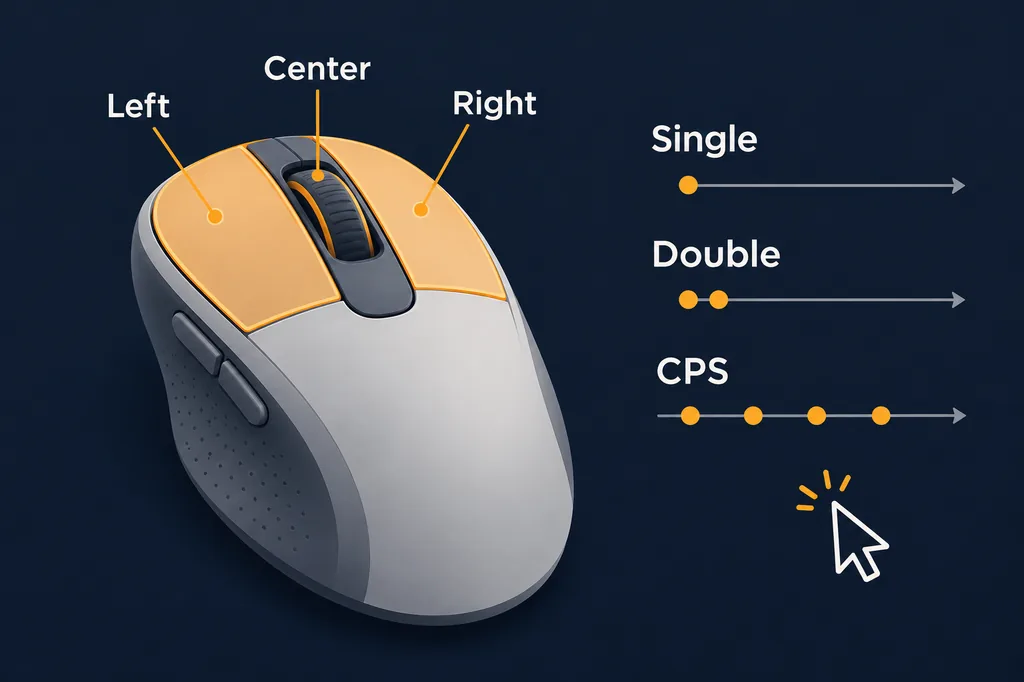
The phrase mouse click test can describe three related but different checks. A button test records whether left, right, middle, and side buttons produce the expected press and release events. A double-click test looks for two click events when you intended one. A click-speed test measures clicks per second, often shortened to CPS, during a fixed window.
Keeping those tasks separate prevents a fast CPS score from hiding a hardware problem. A worn switch may still produce a high score while occasionally sending an extra press. Conversely, a clean single-click log does not tell you how comfortable or repeatable rapid clicking feels. Start with ordinary clicks, inspect the log, and only then compare speed.
- Button coverage: left, right, middle, back, and forward controls should all register when available.
- Event integrity: one physical press should create one logical click and one release.
- Repeatability: the same test should produce a similar pattern after several runs.
How to Use a Mouse Double Click Test
An accidental double click happens when one physical press produces two click events close together. It can make a file open when you meant to select it, release a drag unexpectedly, or trigger two actions in a game. To check it, click once at a normal pace and watch whether the log reports one click or a pair. Repeat with the same button rather than clicking faster to create an intentional double click.
A single suspicious event is not enough to diagnose a failing switch. Test the same button 20 to 50 times, change the surface and browser focus only when needed, and note whether the extra event follows the button. A consistent pattern across runs is stronger evidence than one burst after a hurried click.
- Use normal pressure and a deliberate pause between test clicks.
- Compare the left, right, and middle buttons separately.
- If the issue appears only in one application, check that application's click settings too.
CPS and Reliability Are Different Results
A CPS test starts a timer and divides accepted clicks by the elapsed seconds. It is useful for comparing a clicking technique or game rhythm, but it is not a durability score. Your hand position, debounce behavior, and button actuation affect the number.
For a meaningful comparison, use the same test duration and the same button. Record the total clicks, average CPS, and whether any clicks were missed or doubled. A slightly lower score with clean, repeatable events is more useful than a high score that contains accidental double clicks. Avoid comparing scores from pages with different timers or click-acceptance rules.
Why Mouse Click Test Results Can Vary
Browser input is one stage in a longer path. The operating system, browser event queue, page focus, extensions, CPU load, wireless receiver, USB hub, and mouse firmware can all change when a click becomes visible to a page. A background task can delay a timestamp without changing the physical switch, while a worn switch can create an extra event even when the page is otherwise responsive.
Use controlled comparisons instead of chasing one perfect number. Close heavy workloads, keep the same browser window active, repeat the same button sequence, and compare several runs. If a problem disappears after reconnecting the receiver or changing a port, record that context. The page can reveal a repeatable symptom, but it cannot inspect the switch contacts or certify a hardware specification.
What to Do When a Mouse Fails the Check
First confirm the symptom with a second browser and a different USB port or receiver position. Clean the surface, charge a wireless mouse, and update the manufacturer's software only from its official support channel. If the button misses presses, test another computer when possible. These steps help separate a page-focus problem from a connection or switch problem.
If the same button repeatedly sends extra clicks on more than one computer, keep the test notes and contact the manufacturer or repair provider. Software debounce settings may reduce visible symptoms, but they do not restore a worn switch. A replacement or repair is a practical decision based on reliability, warranty, and cost, not on a single CPS result.
- Re-test after reconnecting the mouse and closing heavy background apps.
- Compare the same button on another computer or operating system.
- Keep a short record of counts, duplicate events, browser, connection, and test date.
Mouse Click Test Signals at a Glance
Choose the signal that matches the question you want to answer. The table keeps button health, accidental doubles, and click speed from being mixed into one score.
| Test | What the page observes | Best use |
|---|---|---|
| Button check | Press and release events for each button | Find a missed or unresponsive button |
| Double-click check | Two close click events after one deliberate press | Investigate switch bounce or unintended doubles |
| CPS test | Accepted clicks divided by a timed interval | Compare clicking speed or technique |
| Click latency | Time between an action and a measured response | Compare a setup cautiously; not a hardware certification |
| Polling rate | Pointer movement events delivered per second | Use the separate polling rate test for movement timing |
A Repeatable Mouse Click Test Workflow
Use this five-step workflow when you need a result you can compare with another mouse or another connection. It takes longer than clicking once, but it reduces false alarms caused by focus, timing, and different page rules.
Write down the browser, connection type, button, duration, and any unusual behavior. A small context note makes a later support conversation much clearer.
-
Connect and focus
Connect the mouse, open a current desktop browser, and click the test area so the page is focused. Disable only the software that could visibly intercept clicks.
-
Check buttons slowly
Press each available button one time at a normal pace. Confirm that the visible count increases and that the press and release behavior looks consistent.
-
Repeat the double-click check
Use the same button for 20 to 50 deliberate single clicks. Watch for a pair of events after one press and repeat the run before calling it a fault.
-
Run a separate CPS interval
Choose a fixed timer and click as consistently as you can. Record total clicks and CPS, but keep missed or duplicate events in a separate note.
-
Compare and troubleshoot
Repeat under matched conditions, then change one variable such as port, receiver position, browser, or computer. A symptom that follows the mouse is more useful evidence than a changing score.
Mouse Click Test FAQ
What does a mouse click test measure?
It can measure button press events, release events, accidental double clicks, and timed clicks per second. Choose the specific test that matches the problem; one score cannot describe every part of a mouse.
How do I test if my mouse is double clicking?
Click the same button once at a normal pace 20 to 50 times and watch the event log. If one deliberate press repeatedly creates two close click events, repeat the check in another browser or computer before treating it as a switch problem.
Is a mouse click test the same as a CPS test?
No. A CPS test measures speed during a timer. A button or double-click test checks event integrity and reliability. A mouse can produce a high CPS score and still send accidental extra clicks.
Why does my mouse click test miss a click?
Page focus, browser scheduling, a wireless connection, a USB hub, firmware, software, or a worn switch can all contribute. Reconnect the mouse, test another port and browser, and compare the same button on another computer.
Can I test the right and middle mouse buttons?
Yes. Test each available button separately and keep the pointer in the page area. Side buttons may be handled differently by browser or mouse software, so record the context if their results differ.
What is a good CPS score?
There is no universal good score. Page timer length, click technique, button design, and acceptance rules differ. For hardware troubleshooting, clean and repeatable clicks matter more than a high number.
Can a browser confirm switch lifespan or debounce settings?
No. A browser sees input events after the operating system and driver process them. It can show a repeatable symptom, but manufacturer documentation or hardware testing is needed for switch life and internal debounce details.
What should I do after a failed mouse click test?
Repeat it with another browser, port, receiver position, and computer when possible. Keep the counts and conditions. If the same button still fails, contact the manufacturer or a repair provider.
Technical Reference
- MDN MouseEvent referenceBrowser event properties and click-related event behavior.
- MDN Pointer Events guideBackground on how browsers expose pointer input to a page.